
Pay day super needs to be set up click here to see how to set up in QuickBooks Online
This blog tells you how to process payday super each week.
First you need to run your payroll and finalise it.
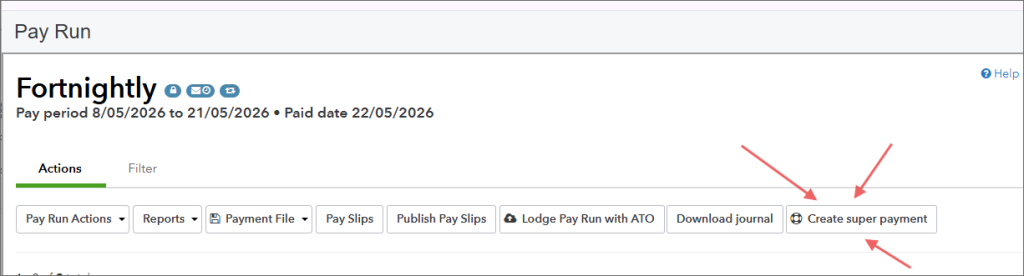
From inside the payrun, you need to click on “Create Super Payment”
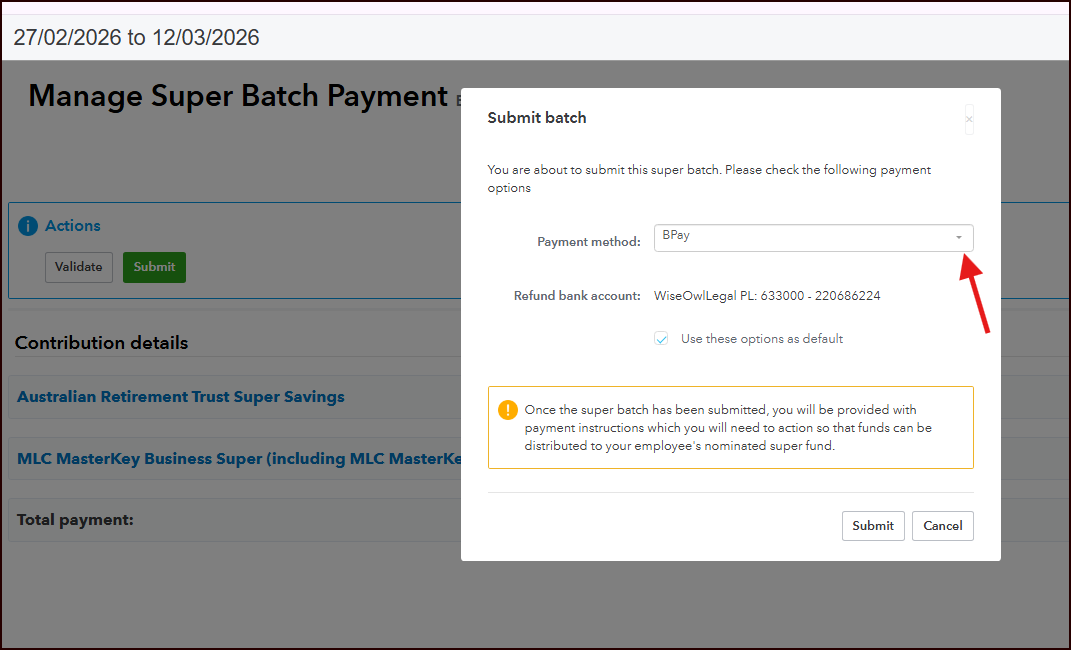
First click the greeen submit button and then you will see the next screen to submit the super for this pay run.
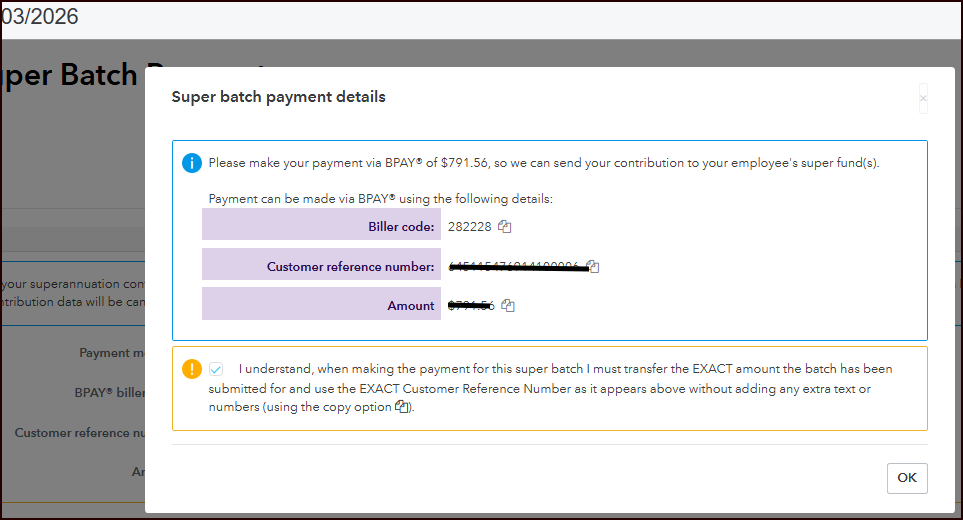
You are then provided the super payment details. If you are NOT doing direct debit, I recommend you stop here and make the payment from your bank before closing the screen.
There is a copy button beside the three pieces of info you need to make the payment.
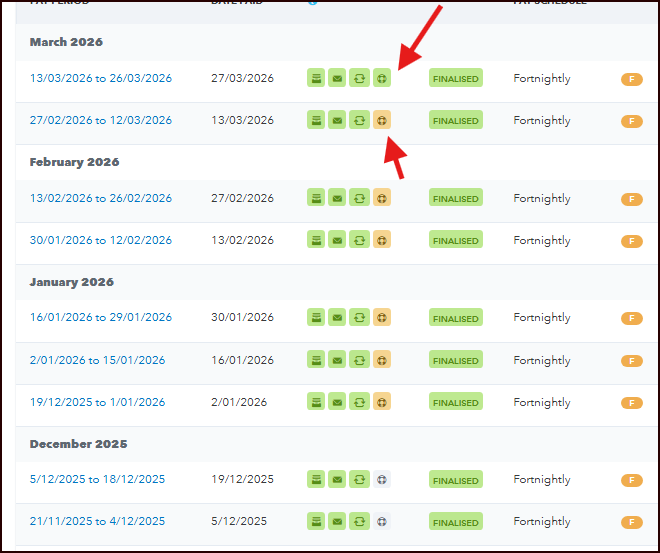
Looking back at the payruns in QuickBooks Online, the forth icon for each pay run now has a Superannuaiton Icon.
The orange icons show payments processing; the green superannation icon is the completed superannuation submission.
Why Process Super Each Pay?
Processing superannuation each pay cycle can help businesses:
- Stay compliant with super obligations
- Reduce large quarterly super payments
- Improve cash flow management
- Ensure employees receive super contributions more regularly
- Reduce end-of-quarter administration
Using payday super in QuickBooks Online also makes it easier to track the status of each submission directly from your payroll records.
Tips for Smooth Super Processing
To avoid delays or rejected payments:
- Ensure employee super fund details are correct
- Finalise the pay run before creating the super payment
- Double-check payment reference numbers before paying manually
- Monitor orange processing icons and confirm they turn green after completion
Regularly reconciling your payroll and super payments can also help keep your accounts accurate and up to date.