If you regularly save Word documents as PDFs, you can make the process much quicker by adding a handy Save as PDF button directly to your ribbon. No more digging through menus—just one click and done! Here’s how to set it up:
Step 1: Open Word Options
-
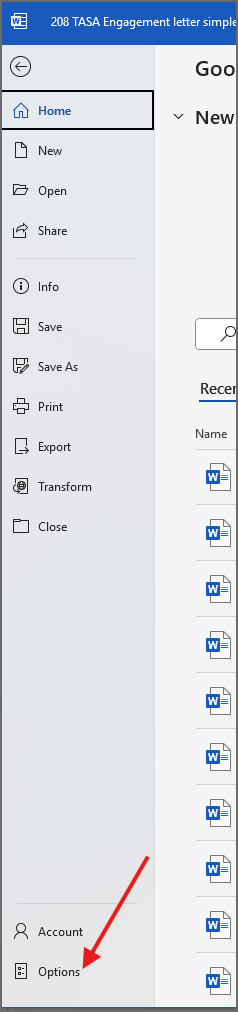
In Microsoft Word, go to the File menu.
-
Select Options at the bottom of the list.
Step 2: Create a New Group
-
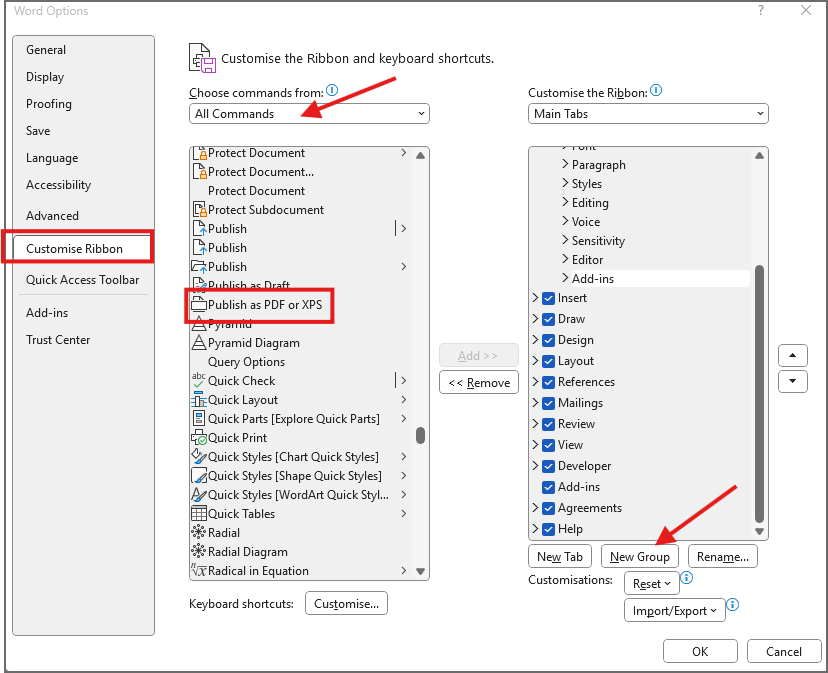
In the Word Options window, click on Customize Ribbon.
-
On the right-hand side, choose where you want your button to appear (e.g., under “Home”).
-
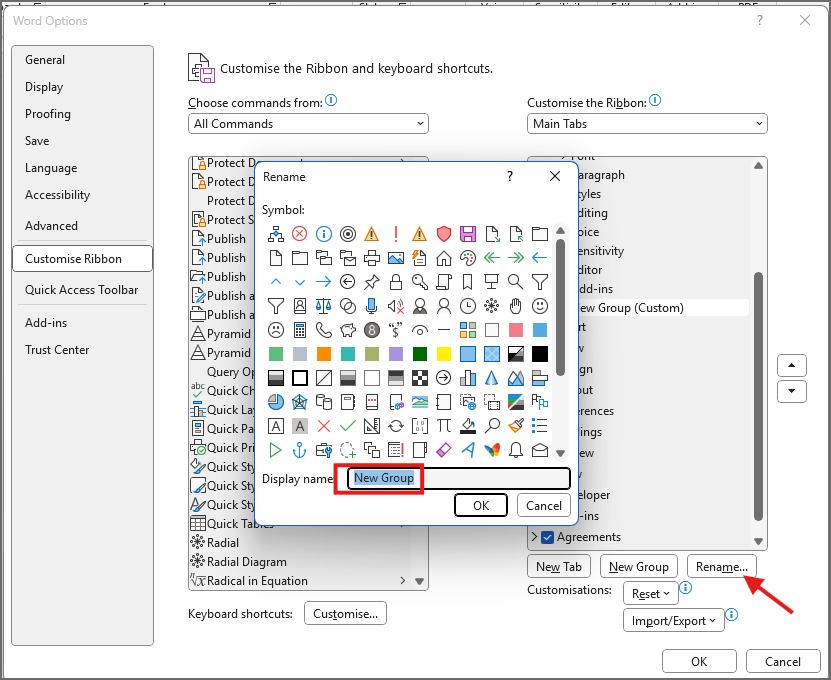
Click New Group and rename it to something like PDF. Then click OK.
Step 3: Add the Command
-
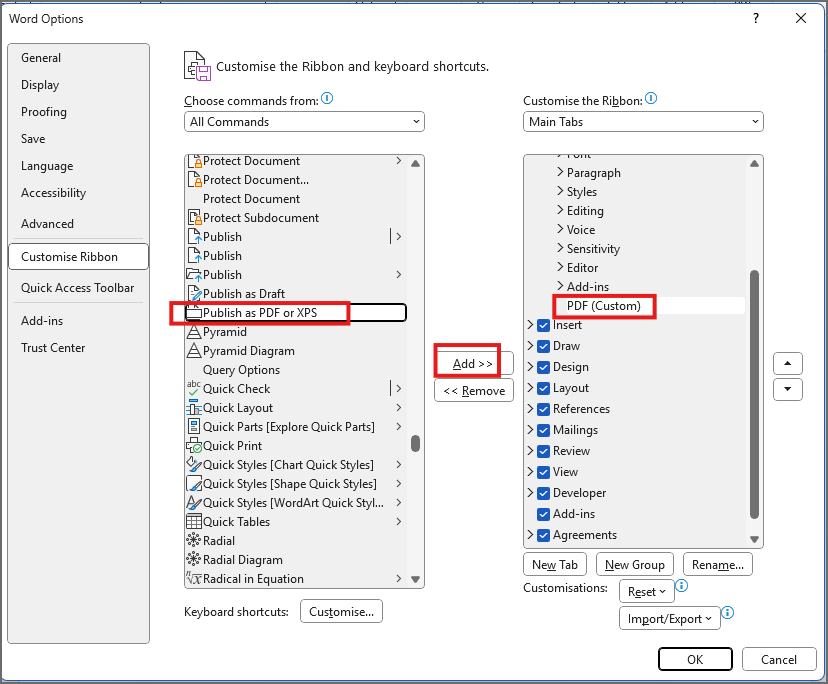
On the left-hand list, find the command for Publish as PDF or XPS.
-
Select it, then click Add >> to move it into your new “PDF” group.
Step 4: Confirm and Test
-
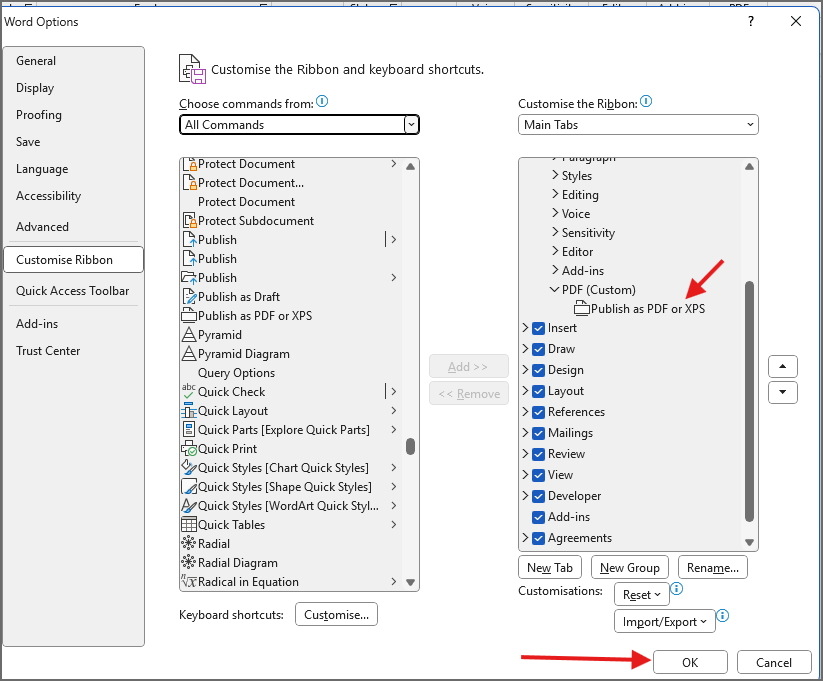
Once you see the command listed in the right-hand column under your new group, click OK to save your changes.
-
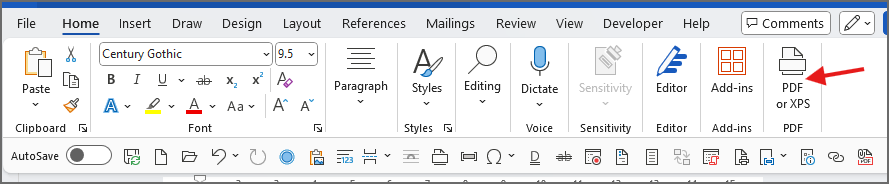
Look at your ribbon—you should now see your new PDF button!
Step 5: Try It Out
Open a document and click your new button. Your file should quickly save as a PDF—no extra steps needed.
Now you’ve got a one-click way to export your documents as PDFs right from the ribbon. Perfect for speeding up your workflow!