Preparation for Pay Day Super – Mandated by Australian Taxation Office
Pay Day Super is live from 1 July 2026. From 1 July 2026 you have 7 days to have the superannuation contributions for your staff arrive in their superannuation accounts.
This will have significant impact for employers – including the following items:
- Cash flow impact: instead of paying superannuation 28 days AFTER the end of each quarter, you will be required to pay it on the same day you pay wages.
- Extra steps (and time required) at payroll processing time – you need to lodge your superannuation at payroll time and then pay it at the time of processing payroll.
- You can authorise your superannuation provider to withdraw directly from your bank account or you can manually pay by BPay. We recommend the latter.
The ATO checklist for preparing for Payday super is at this link PayDay Super from ATO.
Beam as a Clearning House
We have chosen to use Beam as the pay day super clearing house where possible. They are super helpful to deal with.
Choosing Beam as your clearing house DOES NOT commit you to using Australian Retirmement Trust for your employee’s superannuation provider.
We will focus on the use of Beam for processing of payday super, which connected to the Australian Retirement Trust and Precision Administration Services Pty Ltd. The reason we have chosen to go down the Beam path is because Australian Retirement Trust has been an industry leader in terms of superannuation clearing houses and by far the easiest to deal with from an employer view point!
Small Business Superannuation Clearing House
This facility is closing on 30 June 2026. For those using it for current superannuation contributions, this may well mean you have to have your June 2026 contributions processed before 30 June 2026.
We have contacted the ATO to confirm if this will actually be the case. We are still awaiting a response from the ATO.
We will be setting up BEAM for Xero in the next few days. We will send an update once we have completed the similar steps for Xero users.
Set up of BEAM from QuickBooks Online
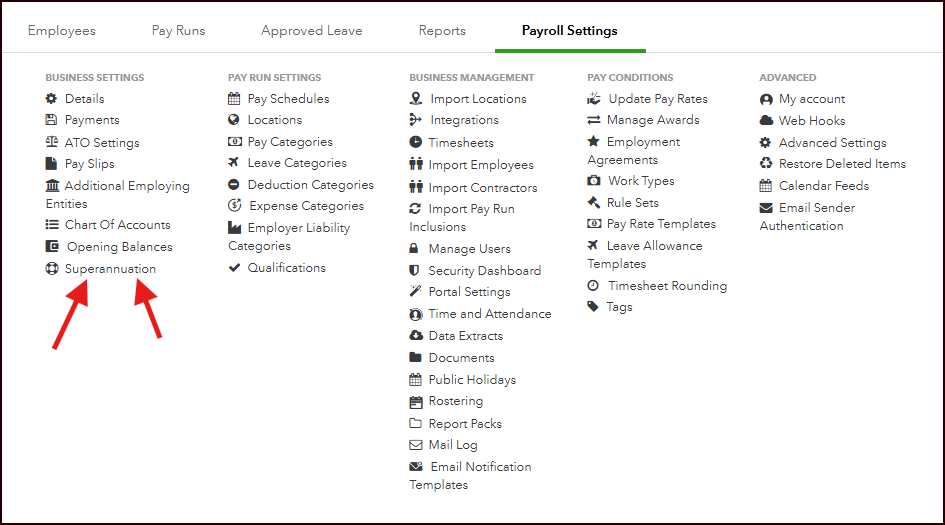
Go to QuickBooks Online payroll and then choose Payroll Settings.
On the bottom Left hand column, click on Superannuation
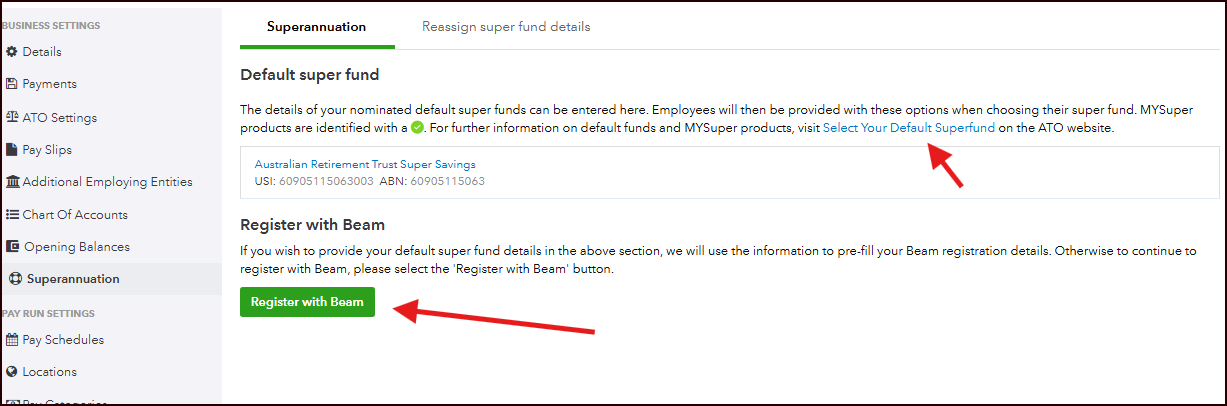
Click on the Green button “Register with Beam”
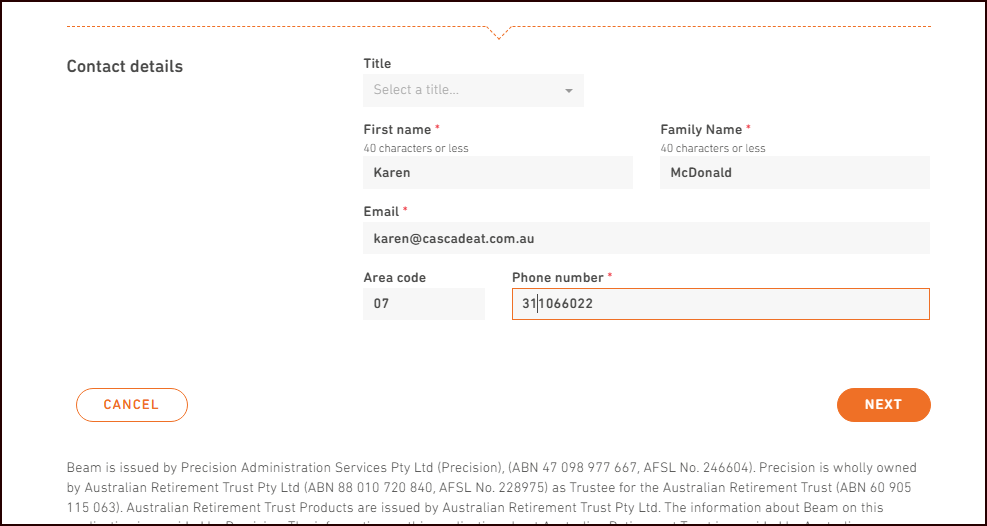
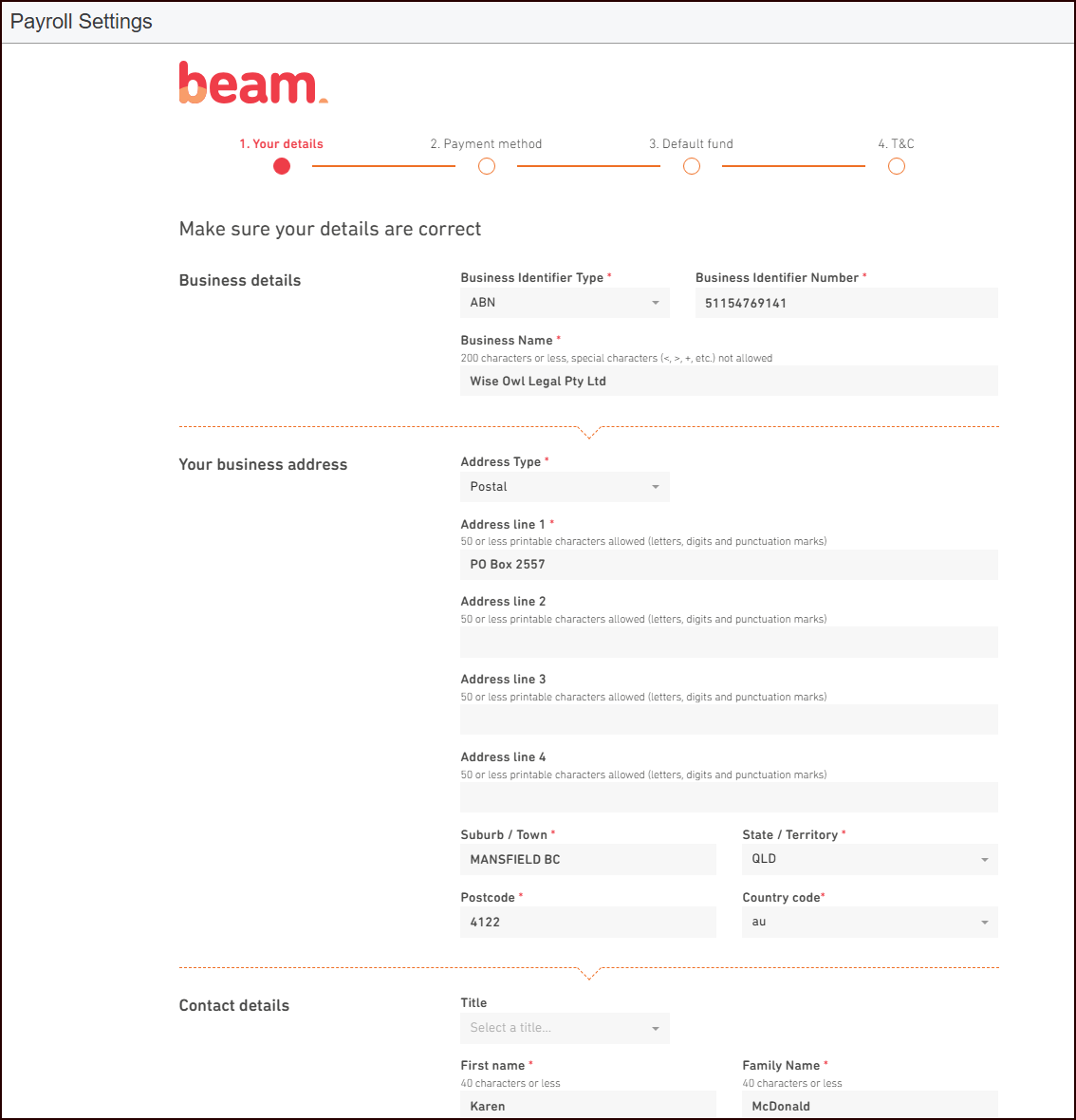
Complete your contact details
Fill in your business details
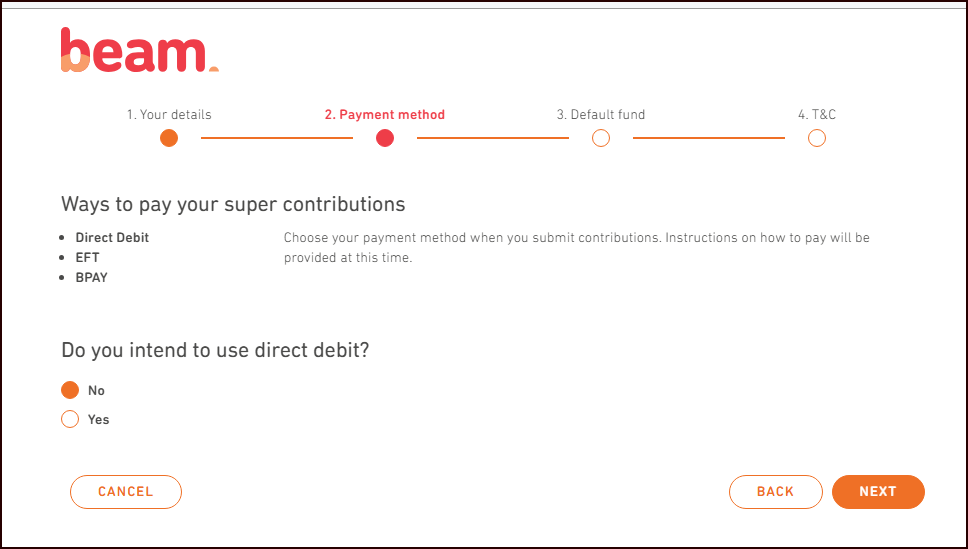
Confirm if you want to use Direct Debit.
Personally I prefer to use the few extra keystrokes to bPay rather than hand over my bank details.
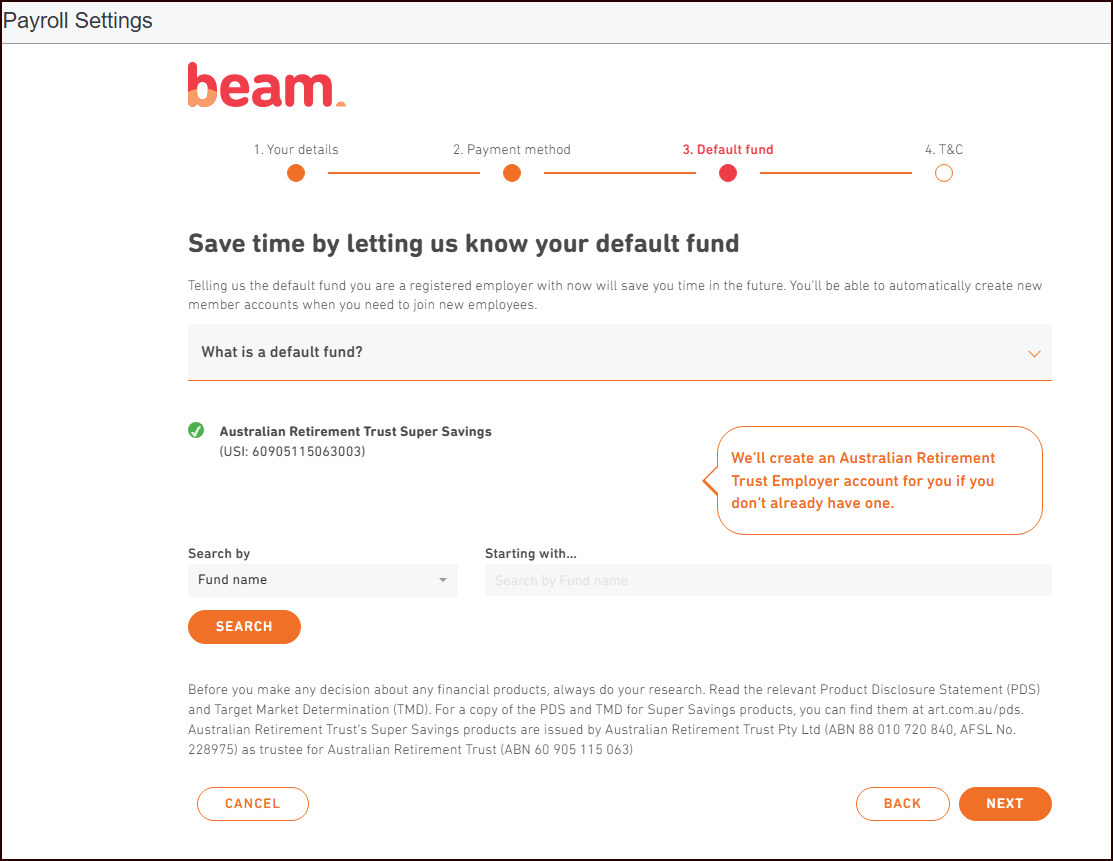
Confirm your Default Super Fund where employees don’t supply details.
I usually put Australian Retirement Trust , although I have never seen the default fund actually used.
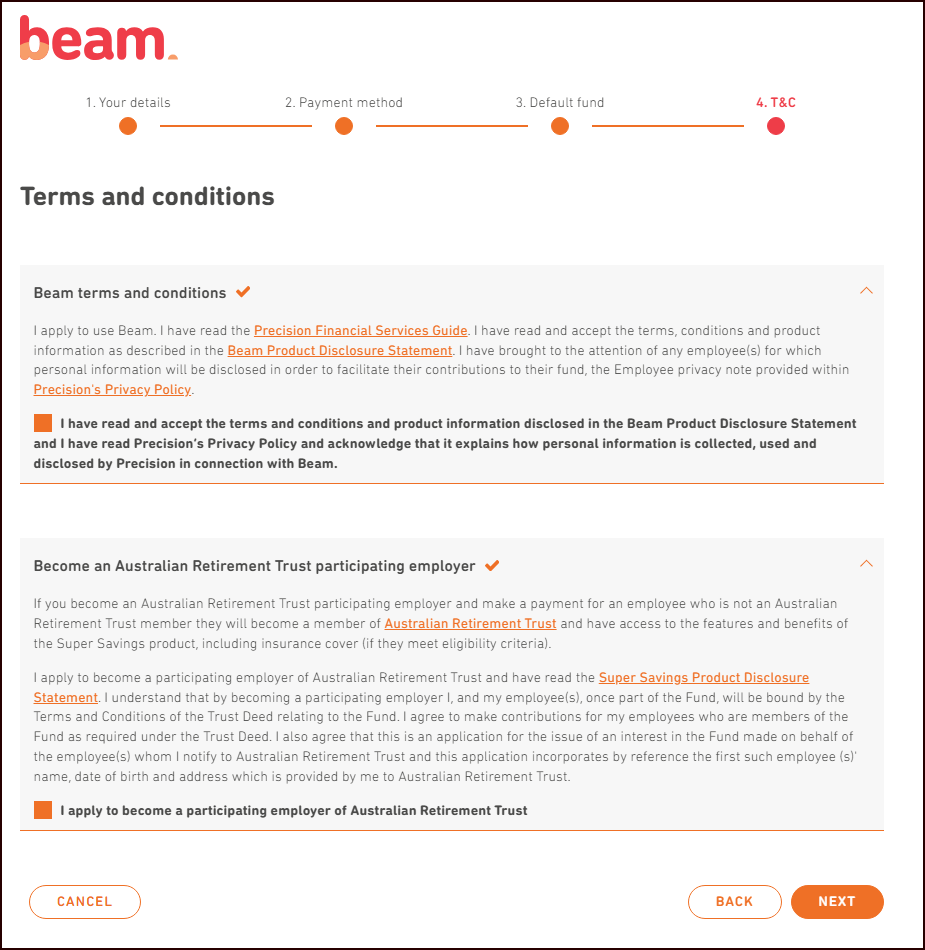
Accept Beam Terms and Conditions and tick “I apply to become a participating employer.”
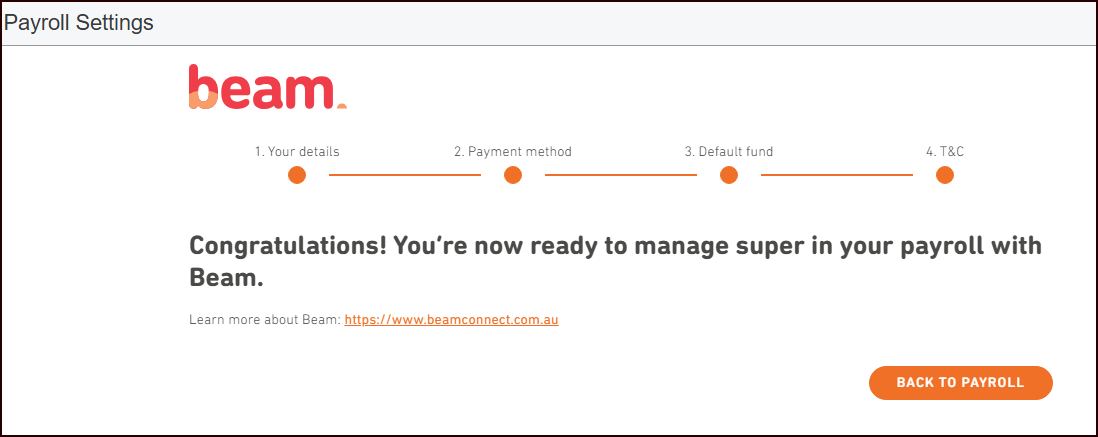
Congratualtions!
You have completed the BEAM set up. Click the orange button to return to payroll.
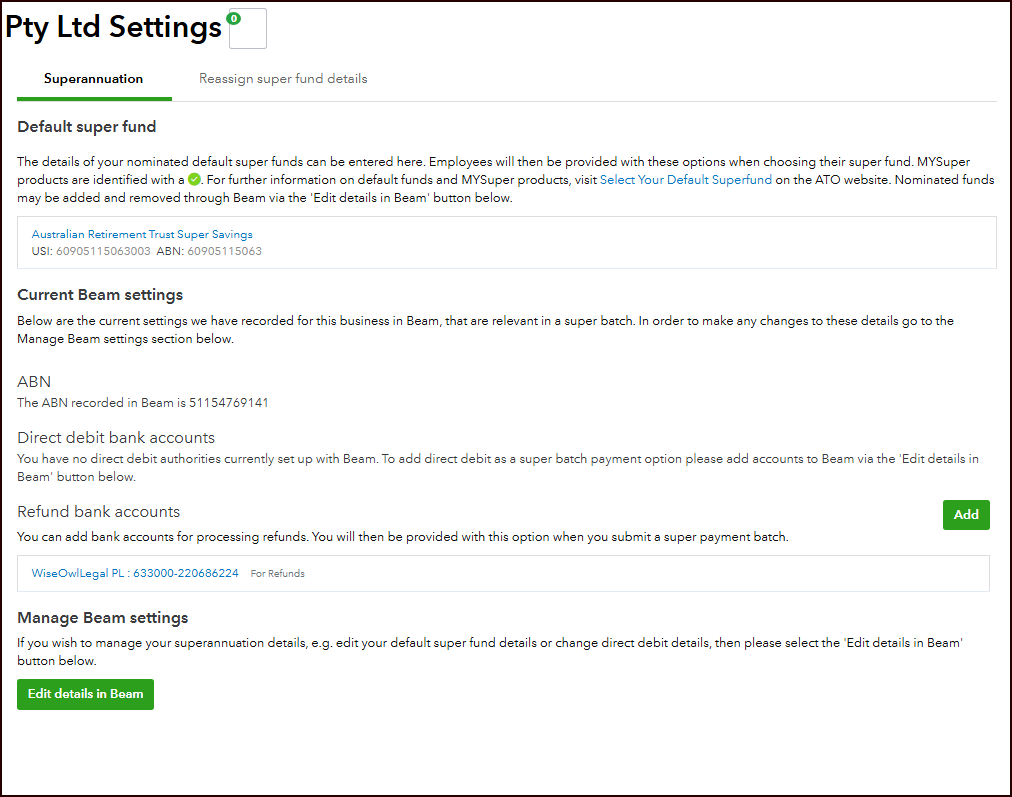
Add in the bank account for refunds – where the payment doesn’t match to the cent.
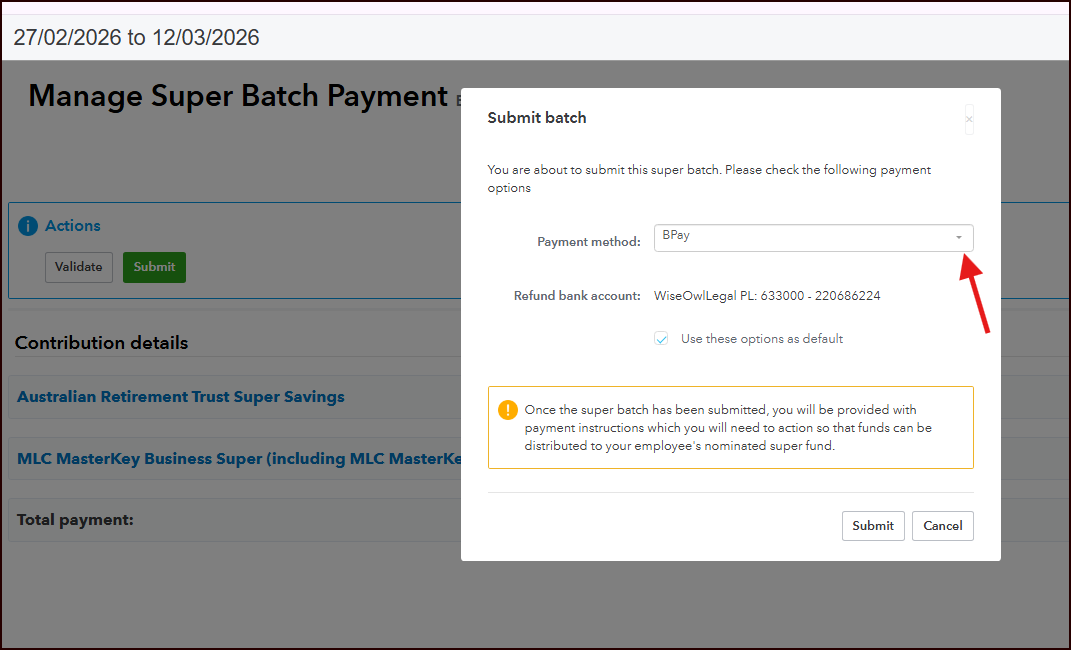
After running your payroll, this is how you submit your superanuation for each pay.
First click the greeen submit button and then you will see the next screen to submit the super for this pay run.
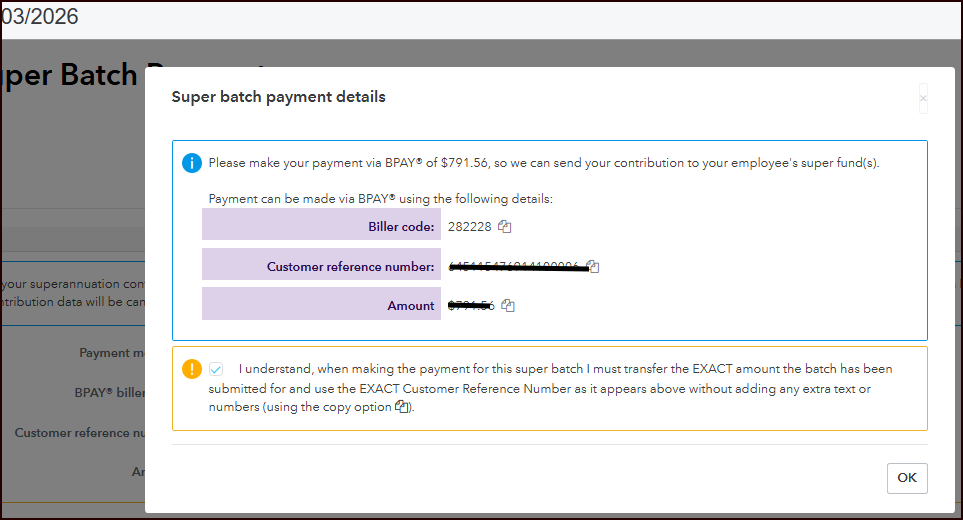
You are then provided the super payment details. If you are NOT doing direct debit, I recommend you stop here and make the payment from your bank before closing the screen.
There is a copy button beside the three pieces of info you need to make the payment.
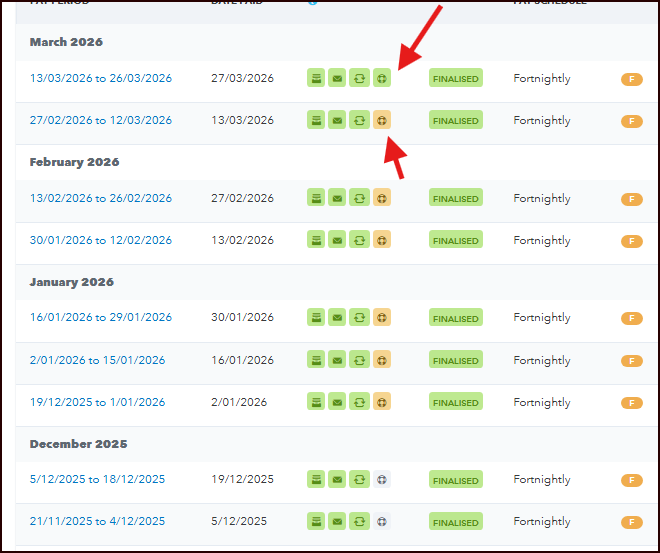
Looking back at the payruns in QuickBooks Online, the forth icon for each pay run now has a Superannuaiton Icon.
The orange icons show payments processing; the green superannation icon is the completed superannuation submission.
….
…