Especially for Word Users: How to Copy Your Quick Access Toolbar to Another Computer
If you’ve customized your Quick Access Toolbar in Microsoft Word and want to transfer those settings to another computer, follow the steps below. This process ensures your favorite commands are readily available, no matter which device you’re using.
Steps to Export Your Quick Access Toolbar:
- Open Microsoft Word on the computer with your custom toolbar.
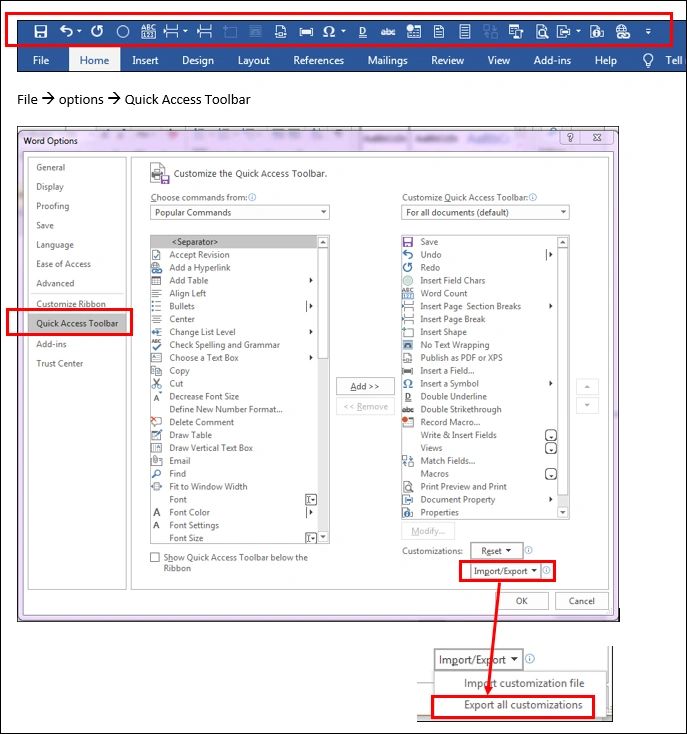
- Click on File in the top menu, then select Options.
- In the Word Options dialog box, click on Quick Access Toolbar from the sidebar.
- At the bottom right corner, click Import/Export, then choose Export all customisations.
- Choose a location to save the file (e.g., USB drive or cloud storage), and click Save.
You can then take this file to another computer and use the Import option in the same menu to load your toolbar settings.