Whether you’re meeting with the Cascade team, attending a training session, discussing support requirements, or collaborating with partner organisations, a successful Zoom meeting starts with proper preparation. Technical issues such as poor audio quality, microphone problems, or unstable internet connections can cause delays and impact communication, making it harder to get the most from your meeting.
Taking a few minutes to prepare before joining a Zoom call can help ensure conversations run smoothly and everyone can focus on the discussion rather than troubleshooting technology. In this guide, we’ll share practical Zoom meeting tips and tricks, including how to test your audio, improve call quality, and create a more professional virtual meeting experience when connecting with Cascade and other organisations.
In this guide, we’ll share essential Zoom meeting tips and tricks to help you avoid technical issues, improve audio quality, and maintain a professional presence during every call.
1. Test Your Audio Before Joining a Meeting
One of the most common meeting disruptions is audio-related issues. Fortunately, Zoom provides built-in tools to help you test your microphone and speakers before your meeting begins.
How to Test Your Audio
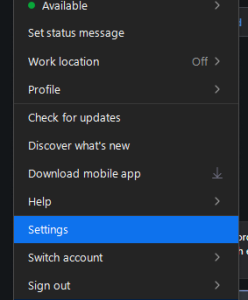
- Open Zoom and click your profile picture.
- Select Settings.
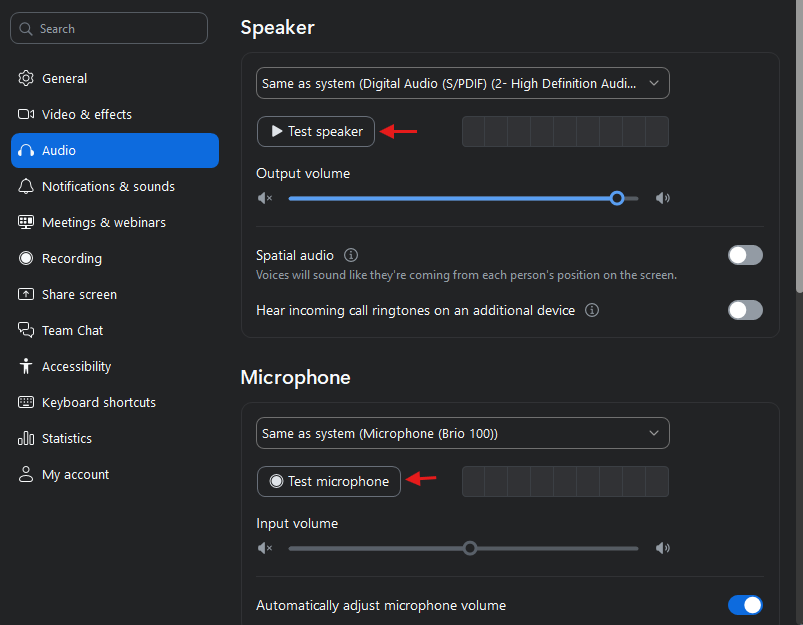
- Navigate to Audio.
- Under Speaker, click Test Speaker to ensure you can hear the sound.
- Under Microphone, speak normally and check whether the input level responds.
- Click Test Mic to record and play back your voice.
Quick Tip:
Join your meeting 5–10 minutes early to perform a final audio check, especially before important presentations or client calls.
2. Use a Headset for Better Sound Quality

Built-in laptop microphones and speakers can sometimes create echoes or pick up background noise. Using a quality headset helps:
- Improve voice clarity
- Reduce feedback and echo
- Minimise distractions for participants
- Provide a more professional audio experience
For frequent Zoom users, investing in a USB or Bluetooth headset can greatly improve communication quality.
3. Check Your Internet Connection
A stable internet connection is crucial for uninterrupted meetings.
Best Practices:
- Use a wired Ethernet connection whenever possible.
- If using Wi-Fi, stay close to your router.
- Close bandwidth-heavy applications such as streaming services or large downloads.
- Ask household members to limit high-bandwidth activities during important meetings.
Signs of poor connectivity include frozen video, delayed audio, and participants speaking over one another due to lag.
4. Choose the Right Environment

Your surroundings can significantly affect meeting quality.
Before Joining:
- Find a quiet location.
- Reduce background noise from televisions, fans, or conversations.
- Ensure adequate lighting so participants can see you clearly.
- Position your camera at eye level for a natural appearance.
A clean and professional background helps maintain focus and leaves a positive impression.
5. Learn Zoom Keyboard Shortcuts
Zoom shortcuts can save time and improve efficiency during meetings.
Useful Shortcuts:
- Alt + A (Windows) / Command + Shift + A (Mac): Mute or unmute microphone
- Alt + V (Windows) / Command + Shift + V (Mac): Start or stop video
- Alt + H (Windows) / Command + Shift + H (Mac): Open chat window
Using shortcuts allows you to respond quickly without searching through menus.
6. Mute Yourself When Not Speaking
Background noise can be distracting, especially in larger meetings.
To maintain professionalism:
- Stay muted when you’re not speaking.
- Unmute only when contributing to the discussion.
- Use Zoom’s “Spacebar to Temporarily Unmute” feature for quick responses.
This simple habit improves meeting quality for everyone involved.
7. Enable Noise Suppression Features
Zoom offers built-in background noise suppression to reduce distractions such as:
- Keyboard typing
- Air conditioners
- Traffic sounds
- Barking dogs
You can adjust this setting under Settings > Audio > Background Noise Suppression.
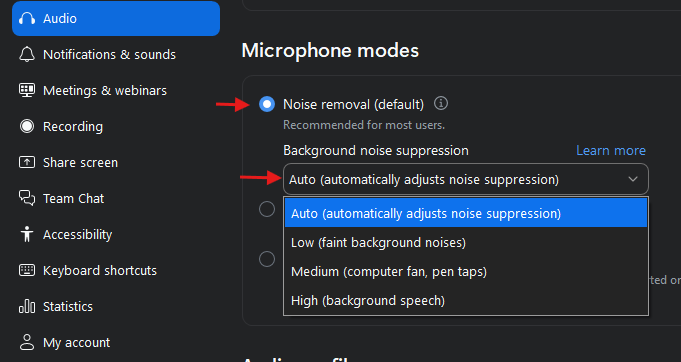
For most users, the “Auto” setting provides an excellent balance between voice clarity and noise reduction.
8. Keep Zoom Updated
Running an outdated Zoom version can lead to compatibility issues, security vulnerabilities, and missing features.
Make it a habit to:
- Check for updates regularly.
- Install updates before important meetings.
- Restart Zoom after updates are completed.
Updated software helps ensure a stable and secure meeting experience.
9. Test Your Video Setup
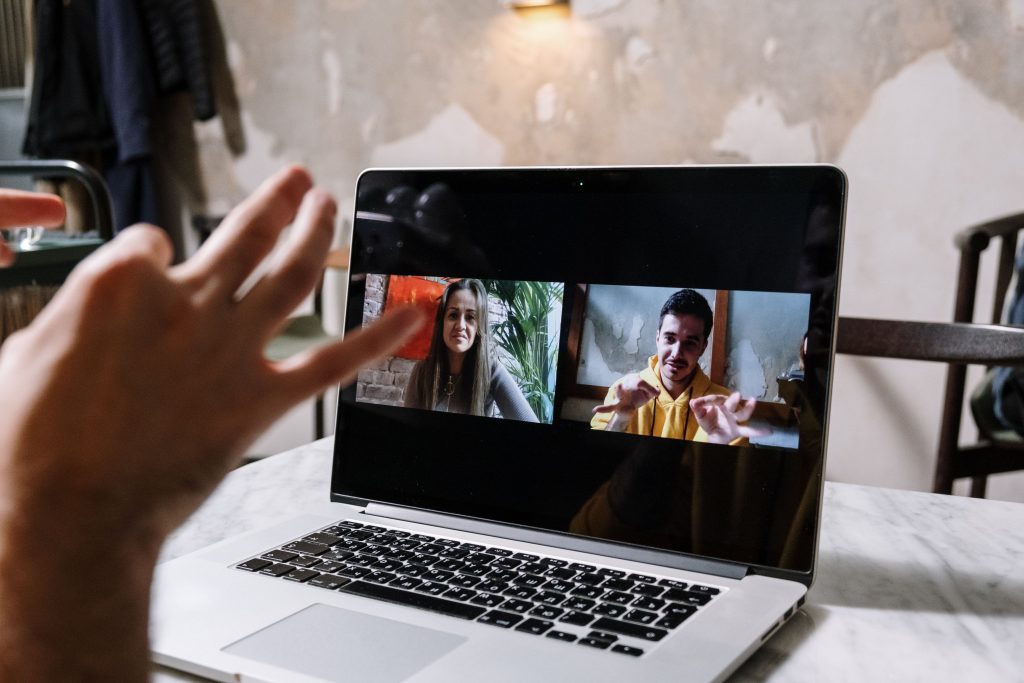
Audio is important, but video quality also impacts communication.
Before your meeting:
- Verify your camera is functioning correctly.
- Clean your webcam lens.
- Check lighting conditions.
- Preview your appearance in Zoom’s video settings.
A clear video feed helps build engagement and professionalism.
10. Have a Backup Plan
Even with proper preparation, technical issues can occur.
Consider:
- Keeping a mobile device available as a backup.
- Having Zoom installed on both your computer and smartphone.
- Saving meeting links and passcodes where they’re easily accessible.
- Knowing the dial-in phone number for audio access if internet connectivity failure.

Being prepared minimises disruptions and helps you stay connected.
Already in a Meeting? Here’s How to Check Your Audio
If you’ve joined a Zoom meeting and can’t hear other participants, or they can’t hear you, don’t worry. You can check and adjust your audio settings without leaving the meeting.
How to Access Audio Settings During a Meeting
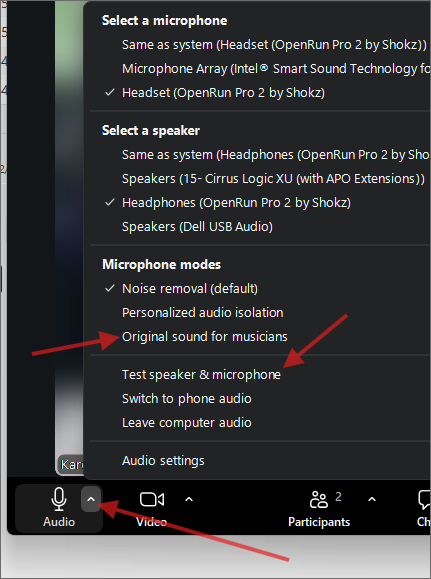
- Locate the Microphone icon in the bottom-left corner of the Zoom window.
- Click the small up arrow (^) next to the microphone.
- Check that the correct microphone and speaker are selected.
- Select Audio Settings to open Zoom’s audio menu.
- Test your speaker and microphone to ensure they are working correctly.
Quick Troubleshooting Tips
If you’re having audio problems:
- Make sure you’re not muted.
- Confirm that your headset or microphone is properly connected.
- Check that the correct speaker and microphone are selected in Zoom.
- Increase your computer’s volume level.
- Leave and rejoin the meeting if the issue persists.
- If internet connectivity is poor, try turning off your video temporarily to improve audio quality.
Need Immediate Help?
If you’re unable to resolve the issue, use Zoom’s chat feature to let the meeting host know you’re experiencing audio difficulties. They may be able to assist or suggest an alternative way to join the meeting.
Final Thoughts
Successful Zoom meetings begin before you click “Join.” Taking a few minutes to test your audio, verify your internet connection, and prepare your environment can prevent common technical issues and help meetings run smoothly.
By following these Zoom tips and tricks, you’ll improve communication, reduce disruptions, and create a more professional virtual meeting experience for yourself and everyone involved.
Whether you’re attending daily team calls or hosting important client presentations, preparation remains the key to a successful Zoom meeting.