Today’s article is 10 tips to empower you to use Microsoft Word more efficiently.
Today we will cover a variety of topics. If you want us to cover more in a subsequent article, please be sure to leave feed back and let us know.
1. What is a Style in Word?
Why should I know about Styles?
Styles in Word are the building blocks that control the font and layout of your document. Clever use of them save a lot of time later. We explain today how to master them.
2. How do I set a default document style?
We all have a favorite document. “So many times, I have heard people say, if only I could get all my Word documents to behave like this”. The good news is you can!
To adopt a style from an open word document to be your default word style.
a. Open the document you like the layout of;
b. Click on HOME on the Word Ribbon;
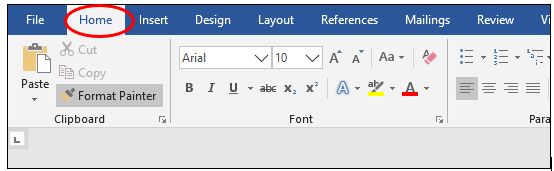
c. Locate the Style part of the home menu and click on the arrow at the bottom right where the green arrow is pointing
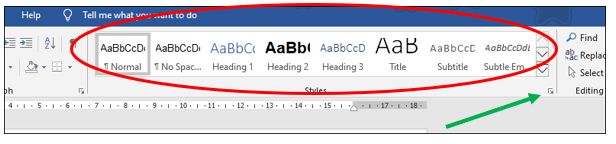
d. This will bring up the Styles box, you can click on the bottom right hand corner to enlarge it, then click options
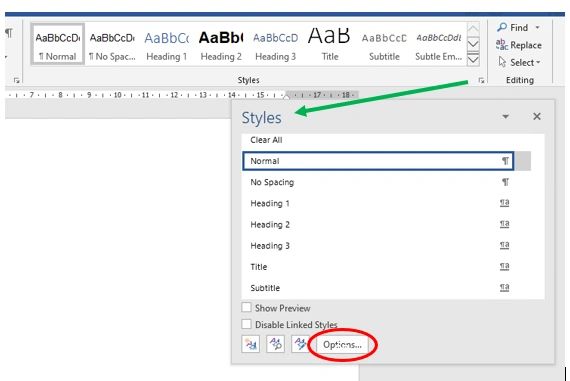
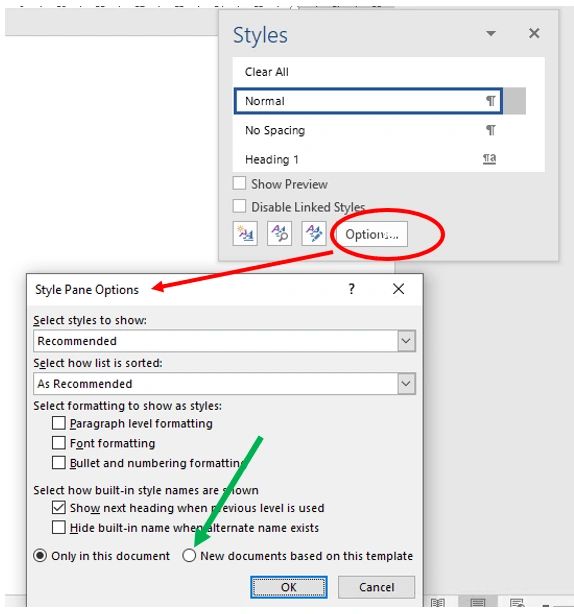
e. The options button will bring up the style pane options
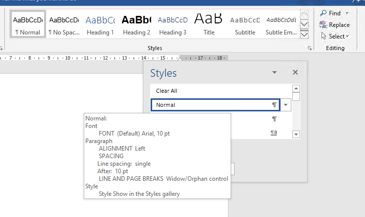
3. What is the “Normal” Style?
The normal style is how Word tells your documents the basics of how it will appear. This includes your chosen font, size and spacing. Many other choices in the “styles” for your document start with the normal font and modify etc (eg Bold and numbered). Understanding the “normal” style gives you a lot more control of your document.
4. What are paragraph markers?
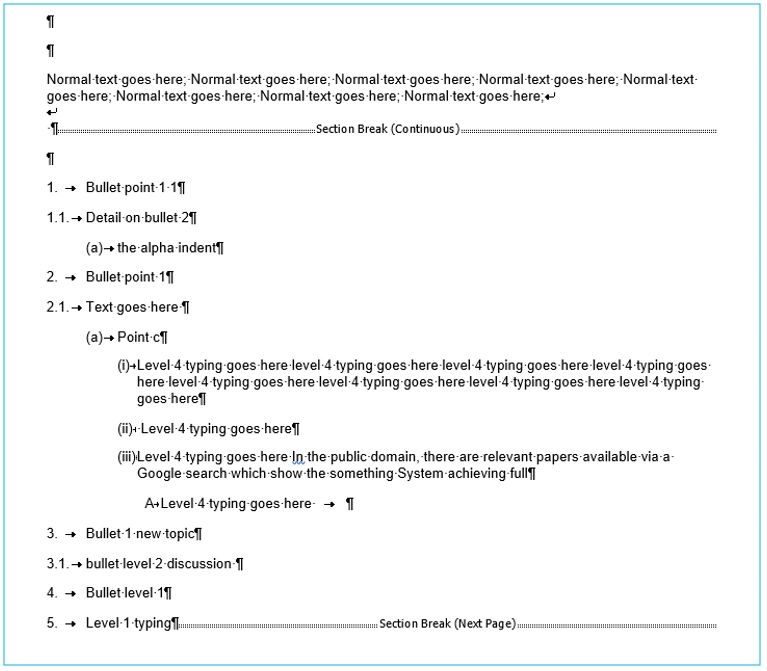
Personally, I call them “ugly markers”! Yes they are ugly, but when you turn them on, they can be exceptionally useful! For those of us who have been around more than a year or two, you might see some similarly to “Reveal Codes” in Word Perfect 5.1!
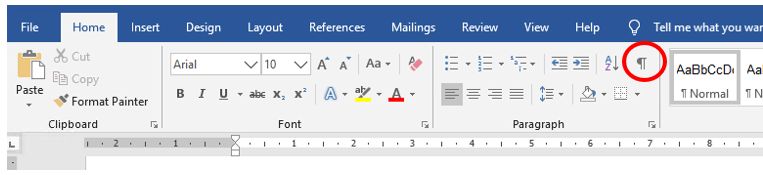
Paragraph Markers are turned on using the paragraph symbol in the red circle below.
Once you turn them on it will show all the hidden formatting. Seeing all of this is really helpful if things are doing the way you expect!
5 Quick Access Toolbar
You have a fabulous quick access toolbar, why don’t I?
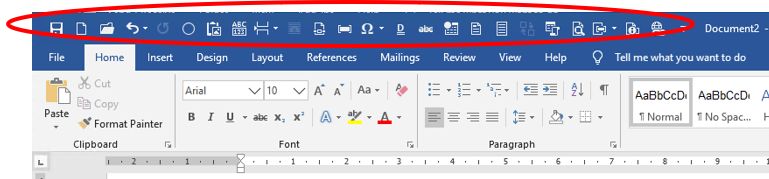
I love my quick access toolbar. Way back in Office 2010 they tool a lot of things off the menus, which I found frustrating. When I discovered the Quick Access Toolbar, I realized I could put on there so many things I want to use all the time!
From your word menu it will be EITHER above or below the ribbon, depending on your choice.
Identify your QuickAccess toolbar – it is either immediately above or below your word toolbar. (see the 2 pics immediately below)
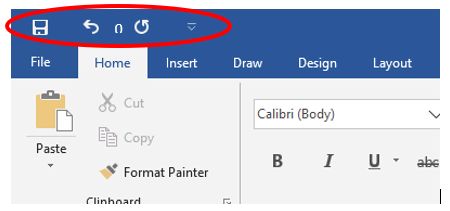
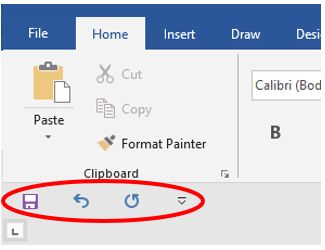
To change the location of the quick Access Toolbar, you can toggle between “Show Above/Below the Ribbon”
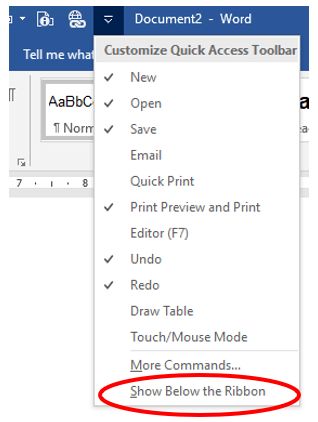
To add more icons to the quick access toolbar click on the small arrow at the end of the toolbar
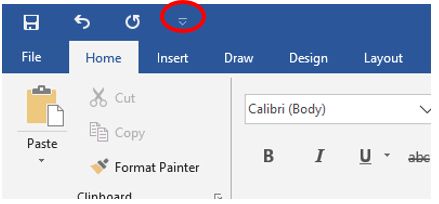
Choose “More Commands”
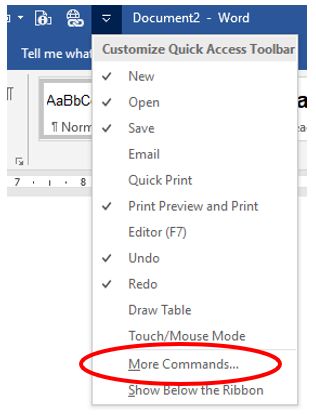
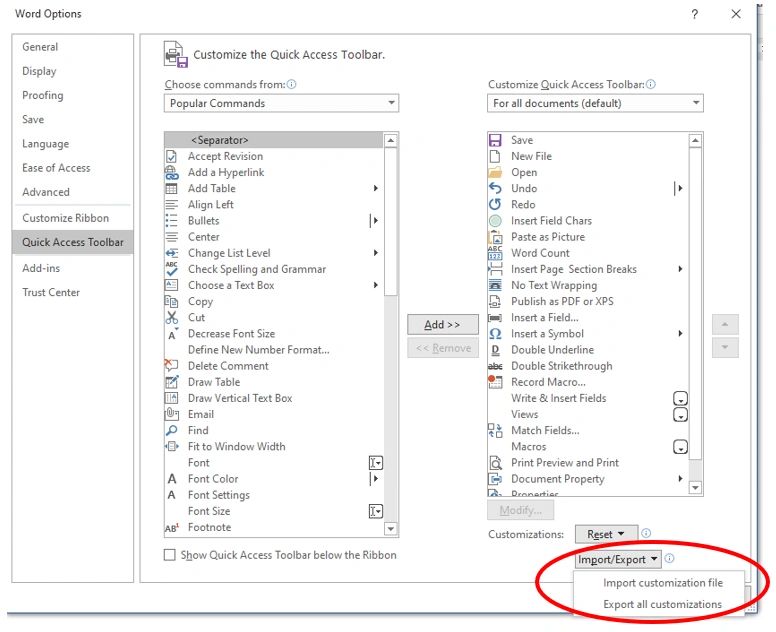
You can then choose the icons you want on your toolbar, or if you are like me you can choose “All Commands” and then see every command available.
From here you can then use the import / export option to copy your perfect Quick Access toolbar to another computer.
6. What are hanging indents?
Why do they matter?
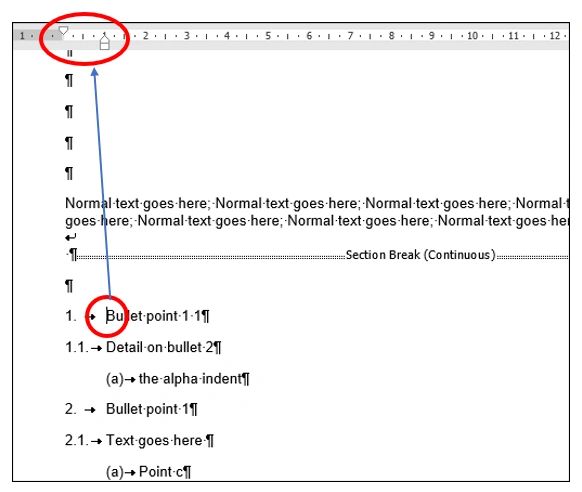
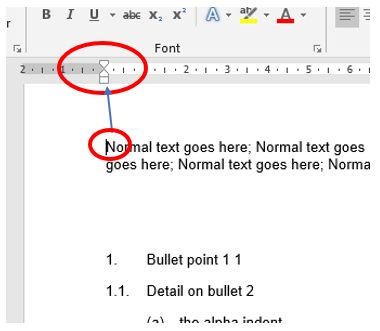
Hanging indents are probably the most challenging feature in word! They control where things start and stop.
7. How do I draw nice shapes in word?
From the ribbon choose the shapes icon.
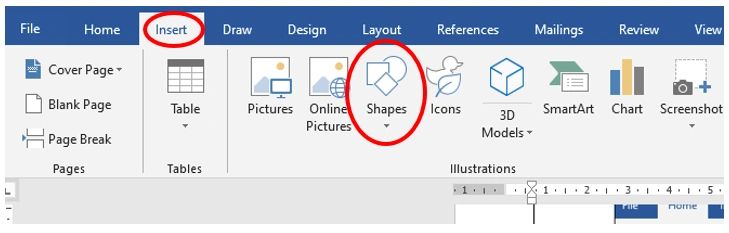
Choose the shape you want by click on it.
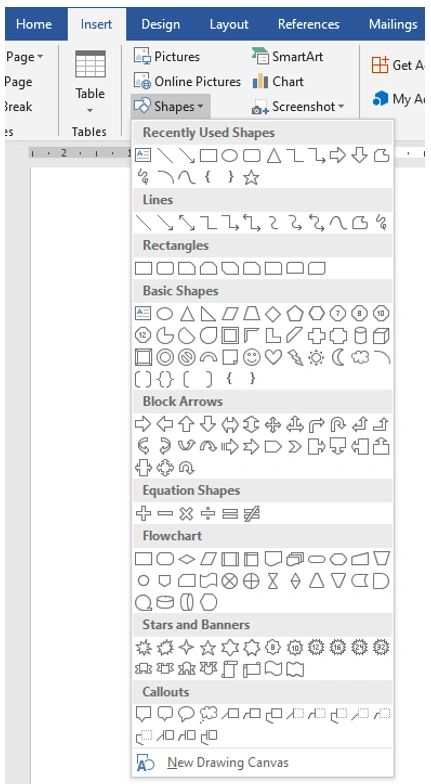
Once you select a shape click on it and then draw it where you want it to be on your document. You can then right mouse click on it and change the colours etc it or otherwise control it’s behavior. You have a wide range of options from here that can enhance your document.
8. Should I save changes to template?
Sometimes when you close a document, word will ask if you want to save changes to the template you used.
Generally, no! it is often word trying to be clever, too clever and can change some of your defaults that you don’t want changed.
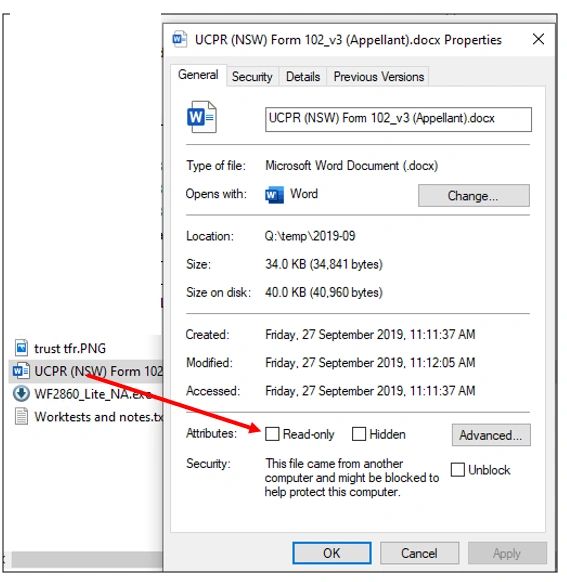
This is a really subtle question and sometimes it can cause really annoying updates to original documents that you really wanted left alone. To stop this happening, for some of the templates I have put a lot of work into, I have gone to the extreme of making them read only.
To make a template read only, locate it in Windows Explorer, right mouse click on it and tick “read only” and select OK.
The next two tips are actually a windows tool, really help you to use word better.
9. The first is the Windows Clipboard
Whenever you use ‘control c’ for copy and ‘control v’ for paste (or use your right mouse menu to choose copy and paste), you are putting the things you copy and paste onto your window’s clipboard. At this point you might be saying ………… ”yea so”, but understanding that terminology will help for the next tip……………..
10. Snipping Tool
The final tip is the Snipping Tool. Each week I introduce it to so many people who are delighted with its usefulness, that I will share it here.
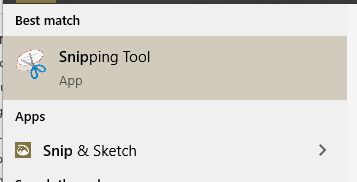
What is the snipping tool? If you go to the start menu on Windows 7 or Windows 10 and type “snip” you can choose the snipping tool.
This wonderful gadget will allow you to take your mouse and click on something on your screen and copy it to your Window’s clipboard. While you have the snipping tool open you can use the drawing or highlighting tools under the red arrows, or you can use the eraser as highlighted by the black arrow if you drawing is as wonky as mine.
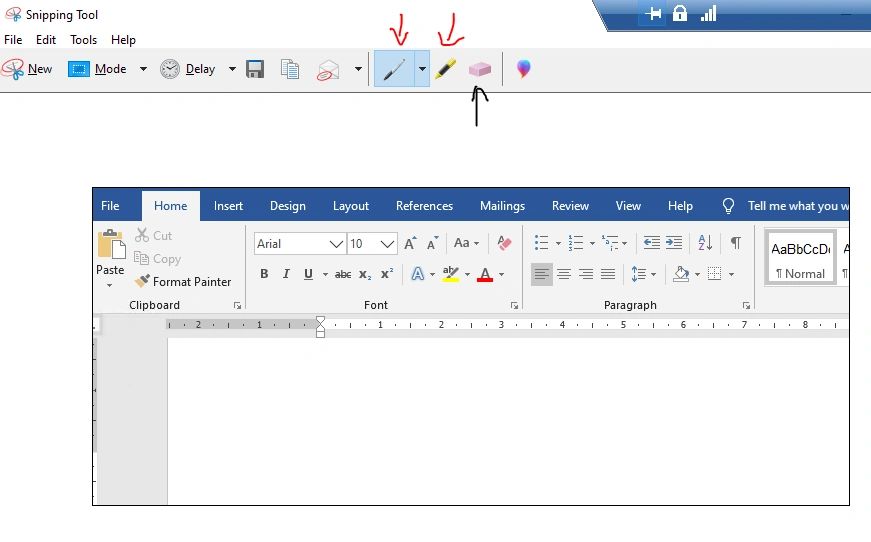
There are also other useful tools such as a delay function or various options to save it in. if you do something else before pasting the contents to your end location, you can use the copy function (to the right of the save option) to select it and copy it again to your windows clipboard.
Be aware that only in this last example have I drawn with the snipping is this last point, because I don’t have a steady mouse. All the nice neat circles etc are using insert shapes from the word ribbon. See location below.
____________________________________________________________________________
About Me

Hi, my name is Karen McDonald and I am a qualified accountant and probably best known as owner of Cascade Consulting, a business that has helped many businesses (including a lot of law firms) over the last 20 years.I run an accounting and tax practice, where we aim to empower our clients to understand their finances and lighten the load of compliance.
In 2011, I founded Wise Owl Legal Practice Management as a response to seeing so many lawyers caught up with the struggle of old, out-of-date and inefficient software. I believe software should lighten your load and empower you to focus on your core mission.
If you would like to learn more about how I could help your law firm in either the accounting or practice management space (or both), please click here to book a complimentary chat with me.