Recently we have had issues with the almighty Chrome Autofill overwriting our good data without us realising until the last minute! We have lost several hard won details with Chrome throwing it’s autofill ‘cleverness’ in the wrong place.
Chrome Autofill used to be really useful but in the last 3 months, Chrome has tried to get soooo clever that it’s become a pain in the ****.
Sound familiar? Like many of you, I use an internet browser for most of my work throughout the day and when it becomes obnoxious, it’s hard not to want to throw the damn thing out the window!
I use various different software platforms and several logins for various sites. Invariably, I always have something strange happen on my browser that makes a 5 minute task into half an hour of cursing, crying and praying to get it to work! Whether it be that I need to access an account that isn’t my default or that the address I put in on a previous page keeps showing up on the page I am currently on!
And then if you contact support the first question you are always asked is… ‘Have you cleared your cache?’
For those of you not in the know, your web browser cache is a temporary storage area that remembers pages you have recently visited and has a memory of downloaded web pages to make it quicker for you to get to that web page next time.
Now, clearing my cache may solve my issue of random data showing up on an incorrect page or directing me to a link that I used once and now never want to use again… but other times, it is damn annoying to have to wait for my frequented web pages to re-download after a cache has been cleared!
Enter – The Incognito Browser (Your hidden friend)
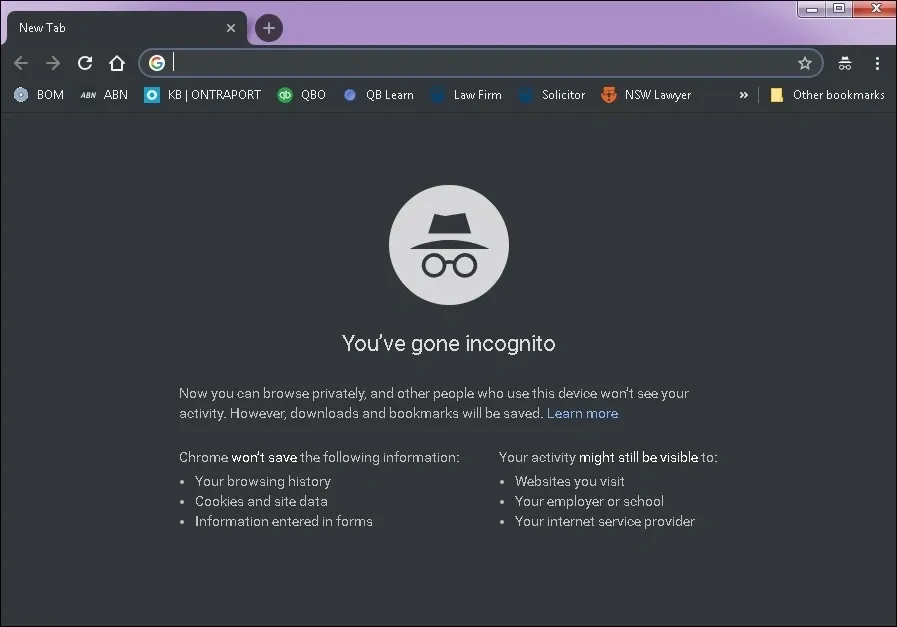
The Incognito Browser allows you to go about your normal tasks on the internet without filling up the cache and your history. Once you close your incognito browser, it doesn’t remember what your history was during that venture, nor does it remember information entered to forms or any other site data!
I personally use this a lot if I need to login to the same web page as two different logins or if I need to access two separate accounts for the same web page. E.g. When working on one of our client’s information, they have 2 entities with 2 separate files in QuickBooks Online. I open one of the files in a normal browser and one in an Incognito browser and have no issues as they aren’t talking to one another!
To access your Incognito Browser,
- right click on the Internet Browser Icon on your toolbar (I use Chrome normally)
- then select ‘New Incognito Window’
This will open up a dark web page that gives you some information about Incognito browsers and from there, you can start googling and opening web pages to your heart’s content.
Remember that depending on what your employer or school’s setup is, your search history may still be available to them if you enter words that are on a restricted or taboo list.
Have you used the Incognito Browser before? Let us know if this article helped you!
Author Gemma Heidemann of Wise Owl Legal, Originally published 1 November 2018